How to import your StoryGraph library
StoryGraph gives you a full export of your reading data, and Must Read reads it directly – so switching, or just keeping a second copy of your history, takes minutes.
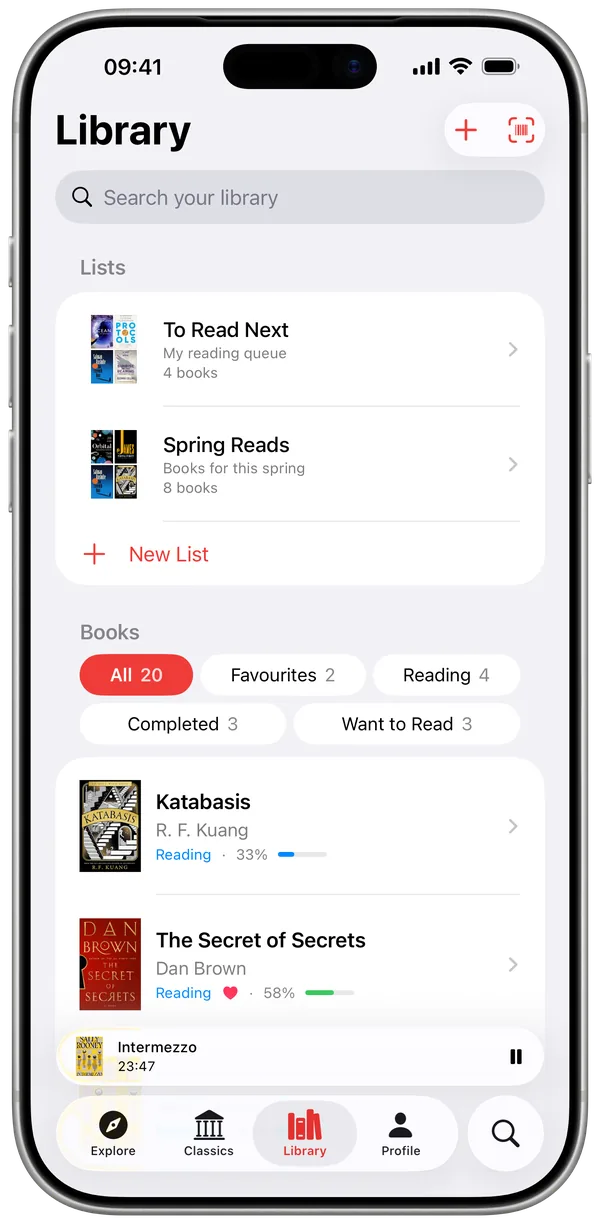
Step 1 – export from StoryGraph
In StoryGraph, open Manage Account → Manage Your Data → Export StoryGraph Library. You will get a CSV file of your entire library – save it to Files or iCloud Drive so your iPhone can reach it.
Step 2 – import into Must Read
Open Settings → Import in Must Read, choose StoryGraph and select the file. The importer understands StoryGraph's format quirks (multiple authors, embedded line breaks in reviews) and matches each book against the database.
What carries over
- Read, currently-reading and to-read statuses
- Star ratings – including half and quarter stars
- Written reviews
- Reading dates, so your yearly history stays accurate
After the import
Your calendar, streaks and Reading DNA recalculate from the imported history. Everything else – timer, lists, classics – works on top of your existing books from day one.
Quick answers
Do I lose my ratings precision?
No – Must Read supports quarter-star ratings, so half-star and quarter-star imports keep their exact value.
Can I import from both StoryGraph and Goodreads?
Yes – run both imports; duplicates resolve to a single book in your library.
Your StoryGraph history, safe in a second home
- Free for your first 10 books
- Reading timer & Live Activity
- Stats, goals & streaks