How to organise your TBR pile
A TBR pile only feels overwhelming when it lives in your head (or on your floor). Give every unread book one home and a reason to be there, and the pile becomes a queue.
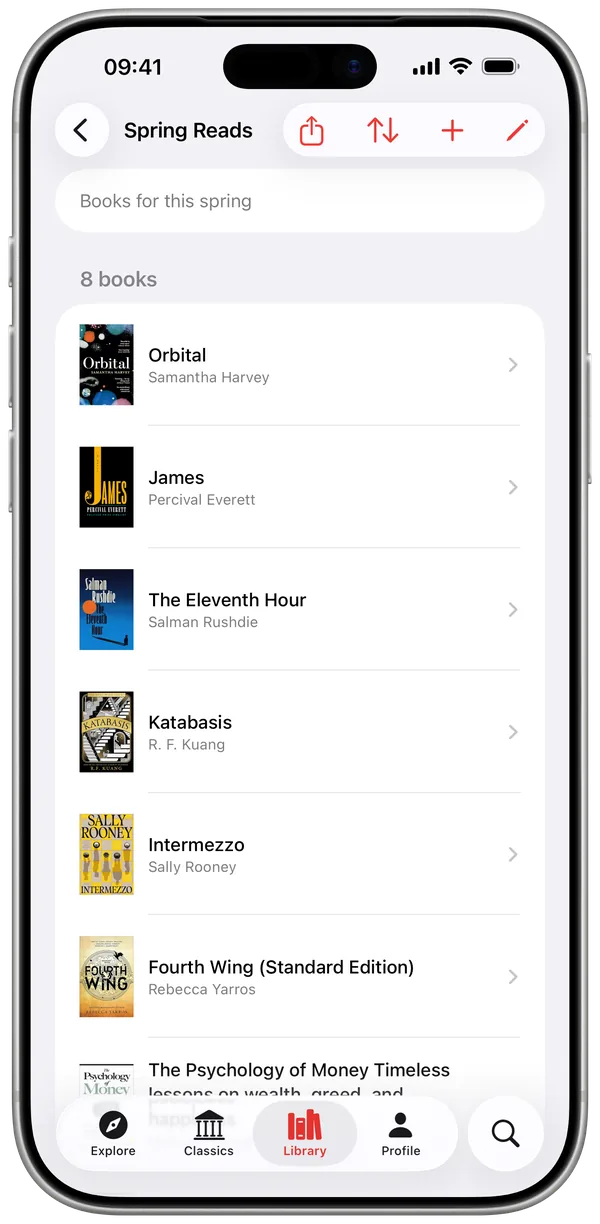
Step 1 – capture everything
Walk past your shelves with the barcode scanner and add every unread book to Want to Read. Add the ones you keep hearing about by search. The point is a single, complete list – no more mental inventory.
Step 2 – one list, many slices
Your Want to Read list is the master queue; custom lists are the slices: comfort reads, book-club picks, a series in order, October horror. A book can sit on several lists at once, and classics can sit next to new releases. Cover mosaics make each list scannable at a glance.
Step 3 – prune without guilt
A TBR is a menu, not a contract. If a book has survived 3 culls unread, let it go. And if you start something that is not working, mark it DNF – it leaves your queue but stays in your history.
Step 4 – picking the next read
When you finish a book, resist the bookshop reflex for a moment: your queue already has the answer. And when it genuinely does not, browse 27 genres or the hand-picked lists curated for your country in Explore.
Quick answers
Is a TBR list app better than a notes app?
A dedicated tracker attaches covers, metadata and progress to every entry, and the same entry later becomes your log, your rating and your stats – a note cannot do that.
How many lists can I create?
1 custom list on the free tier; unlimited with Pro.

Your TBR, captured and sorted this weekend
- Free for your first 10 books
- Reading timer & Live Activity
- Stats, goals & streaks